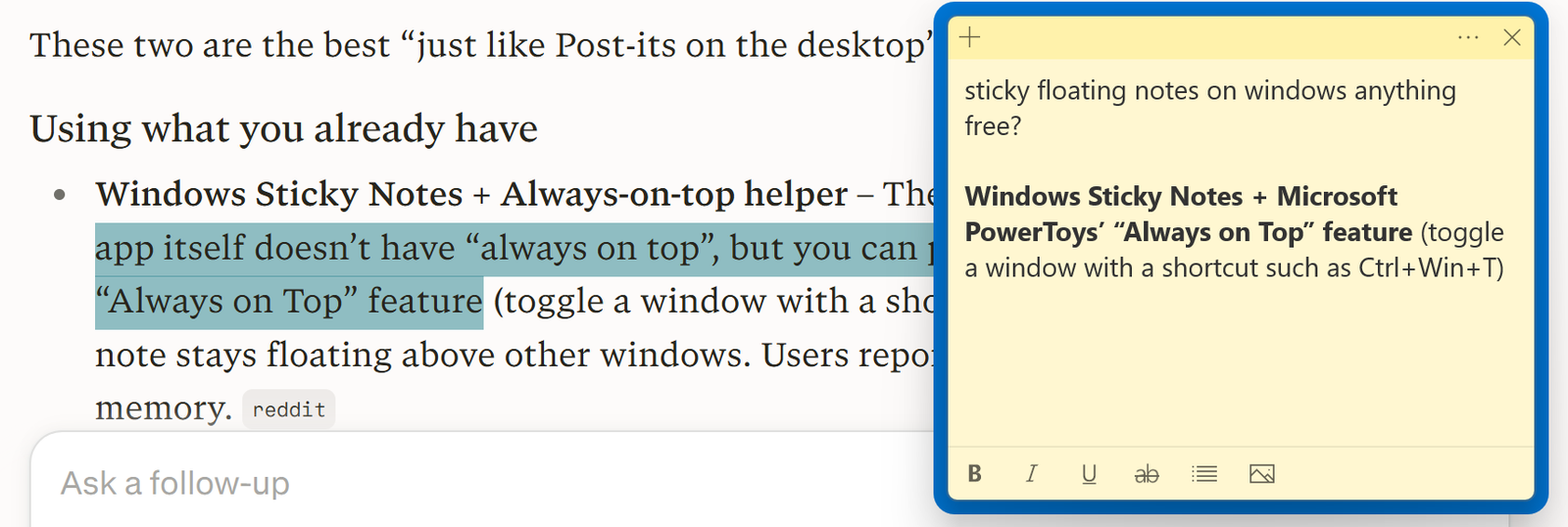
When I’m researching or learning something new, I don’t want my note‑taking app to fight for half the screen. I just want a small note on the side, and my browser or document taking up almost everything else.
On Windows, you can get this with tools you probably already have: Sticky Notes + PowerToys.
Step 1: Create a small Sticky Note
- Open Start and search for “Sticky Notes”.
- Open it and click the plus button (or press Ctrl+N) to make a new note. support.microsoft
- Resize the note to a thin vertical strip and park it on the edge of your screen. support.microsoft
Step 2: Install PowerToys and enable Always on Top
- Install Microsoft PowerToys for Windows 10/11 from the official Microsoft page. techrepublic
- Open PowerToys, go to Always on Top, and turn it on. learn.microsoft
- Check the shortcut (by default it’s Win + Ctrl + T). learn.microsoft
Step 3: Pin your note so it always floats
- Click your Sticky Note so it’s active.
- Press Win + Ctrl + T to pin it on top. learn.microsoft
- Now that small note will float above your browser, PDFs, and other windows until you press the shortcut again.
This setup gives you a minimal, always‑visible note while keeping your main app full‑size — much nicer than squeezing a full note‑taking app into half the screen.